

Who knew online banking could be this easy and enjoyable?

Bank Anywhere

with GBTI Go Banking

GBTI Online makes banking fun and easy from your mobile phone, your home or office 24 hours a day, 7 days a week. It’s convenient, safe and easy.

  • Get a full view of your net worth, spends and recent
    activities in one screen.
  • View or download account statements
  • Transfer funds to GBTI Accounts
  • Pay utility bills
  • Manage your credit cards and accounts
  • Top Up your phone and more

GO Banking
like never before!

Bill Payment

Pay your bills easily and conveniently online with Go Banking

Transfers

Send money to your friends and family using their Facebook, Twitter or email IDs

Loans

Inquire about our various loans on offer

Savings & Chequing Account

Access your account on the go

Manage your Profile

Everything you need to know

to use Go Banking like a pro

What is Go Banking?

GBTI Online (GO) banking is an online banking application owned by Guyana Bank for Trade and Industry Ltd. It gives you access to your account at your convenience. It’s designed for customers who need a fast and easy way to manage your account from home, work or on the go.

Yes! Your account can be opened at any one of our Branches.

You do not need any special software beyond having access to the Internet.

Signing-up is FREE! Come into any one of our Branches convenient to you and we’ll get you signed up.

We assure you that GO Banking is safe and secure. Your Login credentials are known to you only. If your screen is inactive for five (5) minutes or more, the system automatically logs you out.

GO Banking allows all registered customers a real time view of their financial worth, spend and financial standing among other things in one place.

  • Check Account Balances
  • View Account History
  • Transfer funds between GBTI accounts
  • Peer to Peer Transfers
  • Make Bill/Utility Payments
  • Requesting Bank Drafts/Account Statements
  • Request Cheque Books
    Initiate and amend Term
  • Deposit Instructions

After logging onto our website www.gbtibank.com, click “GO Banking sign in” icon
*Please note you can only sign in if you are a current GBTI Online Customer.

  • Enter your previous online banking User ID and Login password.
  • You will be prompted to change your password. A link to reset your password will be sent to your email.
  • Complete the form, accept the Terms and Conditions and then sign in.


Transactions available on GO Banking

  • Check account balances
  • View statements
  • View Cheque images
  • Pay utility bills
  • Pay selected insurance payments
  • Pay selected hire purchase payments
  • Transfer funds between personal GBTI accounts
  • Transfer funds to third party GBTI accounts
  • Make Amendment to standing instructions on term deposits
  • Request Manager’s Cheques
  • Place Stop on cheques.
  • General correspondence
CREDIT CARD PAYMENTS

You can pay your VISA card or Mastercard in one of two ways:

  • Ad hoc Payments (Quick Payment)
  • Pay through a Managed Biller


Ad hoc Payments

This allows you to quickly pay your card in a one-off instant. Once you’ve paid on the card, the information is not stored for future retrieval i.e. you will have to re-enter the card information the next time you visit GO-Banking to make another payment.

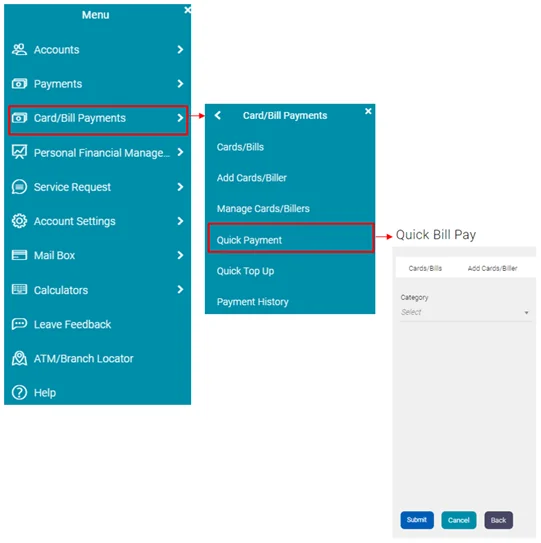
  • Once logged into GO Banking, from the menu
    Select Card/Bill Payments then Quick payments
  • Select the card category (Visa or Mastercard) in the dropdown.
  • Under ‘Biller Name’ select the type of Card Payment:
    • GBTI VISA CLASSIC CREDIT CARD
    • GBTI VISA GOLD CREDIT CARD or
    • GBTI VISA PREPAID CARD
    • Or MASTERCARD (if MASTERCARD IS SELECTED AS THE CATEGORY)
  • Input your Card details (Card Holder Name and Card Account Number)
  • Select your Debit Account from which to pay
  • Enter Payment Amount
  • Submit and Confirm


Pay Through “Managed Biller”

This option allows you to store your Card Payment details for easy payments in the future.
Once logged into GO Banking, select Bill Payments from the Quick Links widget.

  • Click Add Biller
  • Select VISA or Mastercard Card Payments from the dropdown
  • Under ‘Biller Name’ select the type of Card Payment:
    • GBTI VISA CLASSIC CREDIT CARD
    • GBTI VISA GOLD CREDIT CARD or
    • GBTI VISA PREPAID CARD
    • MASTERCARD (if Mastercard is selected)
  • Input your Card details (Card Holder Name and Card Account Number)
  • Click Submit to add Biller.
  • Once the Biller is added successfully, revisit your Dashboard and click the Bill Payments shortcut at your Quick Link widget. Locate the Biller and click Pay.

GBTI is pleased to introduce an exciting enhancement to our Corporate GO Banking platform:

Payroll File Upload.

This new feature is designed to simplify and streamline payroll processing for businesses of all sizes. With Payroll File Upload, you can eliminate manual data entry, reduce processing times, and automate key steps in your payroll operations.

To activate Payroll File Upload on your Corporate GO Banking profile, kindly complete and submit the following forms to your nearest GBTI Branch:

Upon receipt of your completed forms, a member of our team will contact you to guide you through the next steps and ensure a seamless transition.

Mobile Banking FAQs

Do you need an Account

Once logged into GO Banking, access your main menu at the top left of your dashboard. Select the payment option and follow the process

Once you are a GBTI Online Banking customer, you can download the app from the Google or Apple Play Stores.

The App is compatible with both android and apple operating platforms.

At GBTI, we guarantee you that our Mobile Banking Service is safe and secure.

  • Your APP is Password protected by a password known only to you.
  • Your User Name and or password can be reset by you at any time
  • You are automatically logged out of the APP, if you are inactive for 5 minutes or more
  • An automated One Time Password (OTP) will be sent to your valid email or mobile number to complete certain transactions.

Here’s what you can do with your Mobile App:


View

  • Account balances
  • Transaction history
  • e-Statements

Execute

  • Transfers between personal, third party GBTI and other local bank accounts
  • Peer To Peer Transfers using user Email or Facebook ID
  • Wire Transfers
  • Cardless Cash transactions such as Merchant Payments
  • Real time credit card payments
  • Loans Payments
  • Bill/utility payments
  • Mobile Top Up
  • New Term Deposit

Initiate

  • Service Requests for various Account Statements
  • Goals to save towards

Once logged into GO Banking, access your main menu at the top left of your dashboard. Select the payment option and follow the process

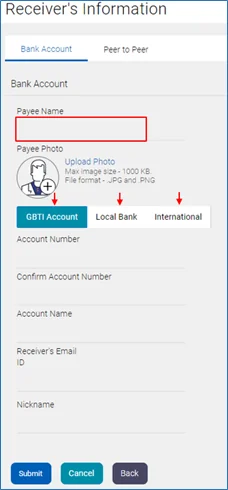
From the Payment Screen select  ‘Managed Payee’ then add new payee.


(A payee could be MMG, a utility company, insurance, GRA or any other biller.)


Select Bank Account to add a GBTI payee, a local bank OR an (International)


Wire Transfer Payee.


Select Peer to Peer to add a Payee that can be paid by simply inputting their email address.


Input your Payee Banking details and submit.

Own Account Transfers

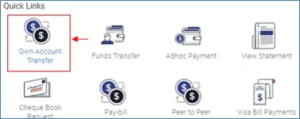
Select ‘Own Account Transfer’ from your Quick Links widget.
 

Select your Debiting and Crediting account, input the amount, select transfer ‘NOW’ to send the transfer instantly OR ‘LATER’ to schedule the transfer.
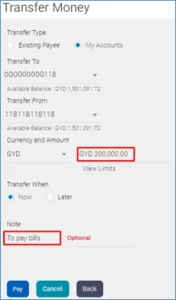
 

Click Pay then confirm.


Internal (GBTI-GBTI) Transfers
Ad Hoc Transfer to GBTI Account Steps

Select ‘ADHOC PAYMENT’ from your Quick Links widget.
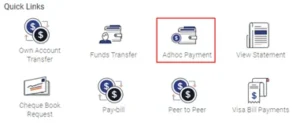
 

Select the ‘GBTI ACCOUNT’

Input transfer details, select your debit account and enter transfer amount.
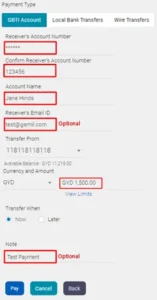
 

Click PAY then CONFIRM

Pay through MANAGED PAYEE Steps

By ‘Managing a Payee’, you are simply saving the GBTI transfer details to your profile for easy payments in the future.


From your Dashboard click the FUNDS TRANSFERS shortcut at your Quick links widget.
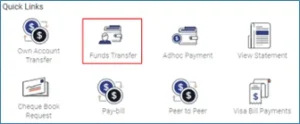
 

Select, from your ‘Existing Payee’ list, the Payee you wish to transfer funds to.
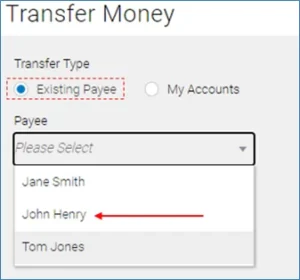
 

Once your Payee is selected, input your transaction amount and click PAY
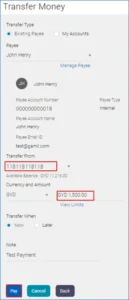
If you have several accounts, click the dropdown at the ‘Transfer From’ field to change your debit account.